Showing posts with label Skies. Scenery. Show all posts

Saturday, May 5, 2012

Make your own cloud brushes

It may seem obvious - but first you need to take a few photos of isolated clouds!
Here is one of mine (you could download it and try with this photo if you have none!)
Step 1. Convert to black and white.
In Photoshop Elements there are a few options you can scroll through. Select the one that will give you the blackest looking sky.
In Photoshop the treatment is a little different, Click on Image>Black and white and use the sliders for Cyan to darken the blue sky to jet black.
Step 2. Clean up the sky using a soft edged brush and black. Get as close to the cloud as you can without obliterating any part of it.
Even though my blue sky looks smooth and even, when it was converted there was quite a lot of white through the black of the sky. That would show if the brush was created without painting over with black.
Step 3. Take a look at the default brush panel. Are the brushes white on black?
Absolutely not! So the next thing to do is invert the colours.
Click on Filter > Adjustments>Invert  Now you have a black cloud on a white background.
Step 4. Crop the cloud as close as you can
Take care that you do not cut any of the faded edges of the cloud or a hard line will show when you apply it in a picture. Leave a little space around the cloud.
 Step 5. If the cloud image is too large you will not be able to turn it into a brush so we need to resize it. If you follow these steps and find that your longest side is 1000 pixels or less you will not need to do any resizing.
All the steps for resizing are illustrated here. Follow the numbers sequentially.
Now we are ready to change this baby into a brush.
Step 6. Click on Edit>Define Brush.
Step 6. In the pop-up box, write a name for your brush.
 Done!
Now you are ready to use your new brush.
Open a picture that needs a cloud and click to add a new layer - the button on the extreme left of the Layers Palette.
Change you color swatches from what ever colors they are to black and white (I prefer to use cream and black because I find white to be too dazzly)
Click on the brush tool and scroll to the bottom of the brushes and click on the very last one - it is the one you have just created.
Now give one click on the sky to apply the brush.
If you do not like it, undo and resize the brush and click again.
The cloud can be moved once it is applied because it is on a layer. It can also be made less bright by sliding the Opacity from 100% to a smaller percentage.
Here is my cloud.
If you find any of these images too difficult to read, click on them and they will open larger.
There may not be many times you need home made clouds but for those few occasions when Nature does not provide the best backdrop, you are ready!
AJ    joanren@gmail.com


Friday, May 4, 2012

Changing skies

Australia (and other countries!) can have the most beautiful blue cloudless skies. I love those days! Mind you, sometimes the photos taken on those days would be so much better if there were a few clouds to add interest to that emptiness!
For those occasions when I find a photo that the eye is pulled into the blank emptiness at the top, I have made my own clouds!
Perhaps I am doing this tutorial the wrong way around - I am going to show how to use the cloud without showing how to MAKE the clouds! I will do that next time.
First I have a picture taken in the Northern Territory.
This is a very important landscape to the aboriginal people of this area. The eye is drawn right through the picture into the blue of the sky. A couple of clouds would stop that happening and allow the eyes to linger longer over the landscape - can you see the face on the rock profile? See, you looked right past it!
Make a blank layer to go over the picture.
If I show you this often enough, you may be able to remember! The grey and white squares in the layer that is called "Layer 1" indicate that it has no colour in it at all, it is transparent.
Imagine a piece of clear cellophane laying over the page of a book, that is how this layer is, you can see through it and all below is unchanged by it in any way.
We shall "paint" clouds onto this layer - and you do not need to be an artist to be able to do this. It is really straight forward.
Before getting to this stage I would suggest that you search for and install a set of "Cloud brushes".
The instructions on how to install the brush set in Photoshop or Photoshop Elements are given to you by the brush designers. Not only have I downloaded a couple of different sets of cloud brushes I have also made my own and this is what I will show you how to do in my next tutorial.
The next thing to do for adding clouds to a sky is to click on the brush tool.
After clicking on the tool, click on the brush set at the top - if you haven't changed your brushes recently it will read "Default brushes". From the drop down box, select the set of brushes that contain the clouds. I have three different sets of cloud brushes but I have selected the set I created myself.

Click on the picture with your brush (you are on the layer so you cannot spoil anything).
When I clicked on my photo I discovered that the brush was much too big for my needs so I had to reduce its size. To do that I held down the Ctrl key (Command for Mac users) and dabbed repeatedly on the left square bracket key, next to the letter "P". The brush I had left sitting over the picture and by using both hands on the keyboard I could watch to see the cloud shape reduce in size until it looked as if it was small enough for me to use. When the cloud brush is hovering over the picture there is a rough outline of the shape.
I had left a big imprint on the layer when I first clicked with the brush.
Delete that layer and create a new one. Delete the layer by clicking on the garbage bin at the bottom of the layers palette and then clicking "Yes" when asked if you really want to delete the layer. Click on the Add new layer button again (like in picture number 2) so you have a clean layer for your new cloud size.
Before applying the brush we need to set the colour for the clouds. White and black would work but take a good look at clouds - they are not pure white. They would be really dazzling if that were so.  Click on the foreground colour of the two colour swatches at the bottom of the tool bar and in the colour selection box that appears chose a yellow colour - slide a little further down towards the red so there is a warmth to the yellow. You will need a sample from the light area. Here is where I took my sample.
The background colour swatch can be black or dark grey - it gives the shadows to the cloud.
Now click only once on the sky - after using the outline as a guide to positioning the cloud.
Although the cloud is dabbed at 100 per cent opacity this strength can be reduced in the layers palette to more transparent. It looks quite natural, doesn't it?
Because this cloud is on a layer it can be moved. Change the tool to the Move tool (hit the letter V on your keyboard, if you like short cuts!) and move the cloud across the sky.
Take care that the cloud is not put over the top of trees or buildings. If that happens you will need to erase using either the erase tool or by using a mask and painting out the cloud.
When you are happy with the placement of your cloud go to Layers>Flatten image (on the Menu Bar).
Now, off you go and find a set of cloud brushes and give a little character to those empty blue skies!
AJ                joanren@gmail.com

Thursday, November 4, 2010

Woomera Sunsets

I have spent quite some time sorting though my photos and converting them from RAW to jpegs and adjusting the lighting on a few of them. Not one has needed any colour adjustment which is pleasing. I am still “raving” about my super Nikon D90! So far it hasn't let me down.

You may remember that I showed only one of the sunset shots that I took at Woomera. That night there were no obstructions to spoil a magnificent sky.

I actually took twelve shots and every one of those is a “keeper” but I am showing you a small selection to show how the sky changed during the 15 minutes I was taking photographs.

f/5  1/1600 ISO 500  32mm
The very first shot is from just outside the fence of the caravan park and you can see the road and the power lines that I had to walk past to get my unobstructed view of the majesty of the evening.

f/18  1/640  ISO 500  55mm

f/7.1  1/640   ISO 500   33mm 

f/5.3  1/400  ISo 500  48mm

f/5.6  1/400 ISO 500  55mm
AJ

Tuesday, July 20, 2010

Sunset at last!

I have been hoping that the sky would behave one evening so that I could try my new camera out on a colourful sky. (Nikon D90) Well tonight was my night! Admittedly there was colour but it only covered a fairly small area of the huge expanse of sky that I can see from my back veranda so I did have to use the tele end of my 18-55mm lens.
The camera was put into full manual mode - I did not want the camera to compensate for the darkness. The aperture was set on f/8 and left on f/8 and the shutter speed was varied according to the results I got. (After each shot I get a couple of second's preview of the image).
Composition is always important to me so I had to carefully choose which trees to include and where to position them and still get the sky colours I was after.
The first shot I am sharing was taken in the area of sky where the sun actually goes down - because it is winter time and I live in Australia, that area is in the North West. (In the summer time the sun goes down in the West).
f/8 1/25sec ISO 200 55mm
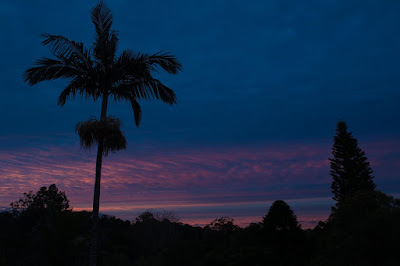
The next two photos were taken looking North at the colours reflected on the sky over the horizon. This always happens a little after the brightness in the west and is worth waiting for. The colour is softer but beautiful.
f/8 1/10 ISO 200 22mm
I just had to include the palm tree to show this sky as a tropical sky!
f/8 1/20 ISO 200 55mm
The shutter speed was varied to compensate for the darkening sky - I like to keep the darks "dark", this way the colours are richer. I have not "enhanced" the colours, I know this is easy to do but today was not necessary!
AJ

Thursday, November 19, 2009

Amazing skies

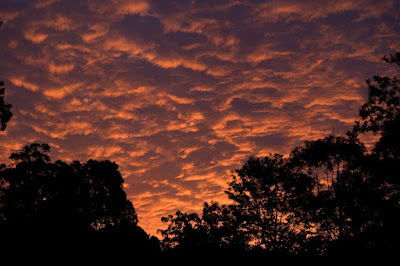
The sky can be really beautiful and here in South East Queensland there is so much sunshine that very often there are no clouds in the sky at all. Blue skies are great when you want to take a single blossom on a tree with a vivid blue background but when taking scenery the monotone of the sky seems a little uninteresting. Being in it is wonderful, don't get me wrong! But in a photograph a few clouds counter the entertaining foreground. Knowing this I have created dozens of cloud "brushes" so that I can add all kinds of clouds of many different shapes and opacity - however when I saw the sky in the photograph that I have included here, the sky was definitely the focus of interest. I could NEVER have created a sky like this in Photoshop!
This was one of those occasions when I had the camera when the opportunity presented itself. How many times have you wished you had a camera at a particular moment? So a lucky shot! Lucky too that I went outside and actually saw it!
AJ