I know, there are no questions or reactions to anything written in these pages either - but at least I can enjoy the presentation myself - and look back on earlier postings and share the stories with my email friends. I do hear about my postings via email and that way I can interact about the topic that was covered or give additional information to anyone who has not quite understood a tutorial.
I will now try and add something to these pages each day. It may be long it could be very short, it may be about something done ages ago or it may be a travel diary as I explore the world. This is my page and I will be as inconsistent as I am in real life!

Barking owl - Ninox connivens
One thing I will attempt to avoid is personal stuff! Breathe easy! You will not see much of the family here - but you may glimpse my husband occasionally since he always accompanies me on my trips. He sometimes gets in the way of the camera!!!On a recent visit to Currumbin Sanctuary on the Gold Coast of Australia, I took along my Nikon D90 and had the sense to take the 55-300mm lens along as well as the standard 18-50mm, so I was able to use the full zoom (300mm) to isolate the birds from their backgrounds. You can tell from the patterning in the background to the Barking Owl that this is a captive bird - what you cannot tell is that heavy mesh was between the camera lens and the bird. The spaces between the wires was about 3cms so it was not possible to thread the lens through the gaps - also there was a no-go space between the cage and the footpath. That is why manual focus had to be used, if I had used automatic focus this would be a photograph of the wire with a dark shape behind it. Deliberately focusing on the birds made the near wires evaporate and the narrow depth of field I had chosen made sure that the wires in the background were not so visible either.
If you are using a compact camera that has a good zoom on it, you too would be able to do this - but you will need to check in your camera manual on how to manipulate the focus. If you are using a tripod (highly recommended for this sort of shot) you will have time to tweak the focus. A bird, such as an owl, keeps quite still for a long period of time. You just have to wait for the eyes to open!
AJ


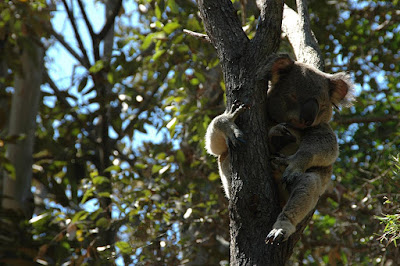
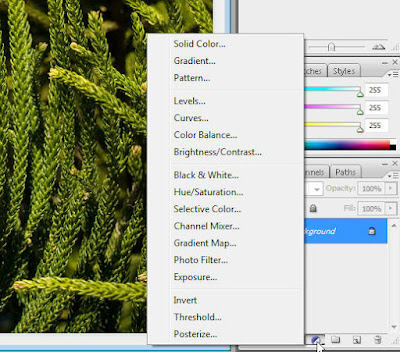
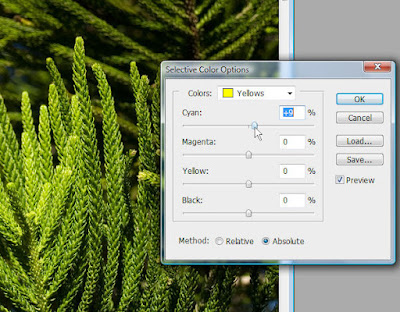
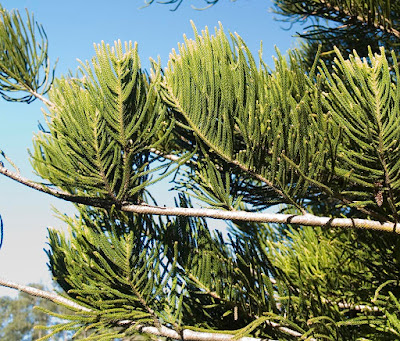 To begin with, duplicate the layer and click on the round button that is half black, half white. Select white as the colour to be changed and slide the colour sliders and the black slider to change the white to match the blue at the top of the picture.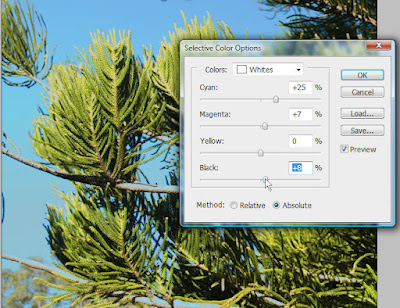
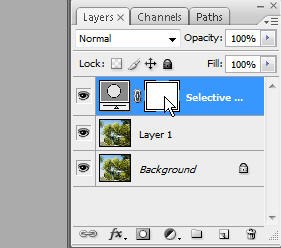
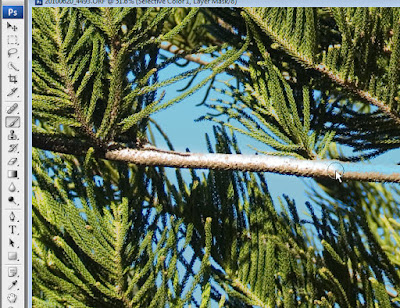 You will need to use the magnifier to get in very close so that you can be accurate in your brushwork. Zoom in and take care as you paint - it required a very small brush to remove blue from the tips of the green leaves and I would not even have seen that it needed doing until I zoomed in.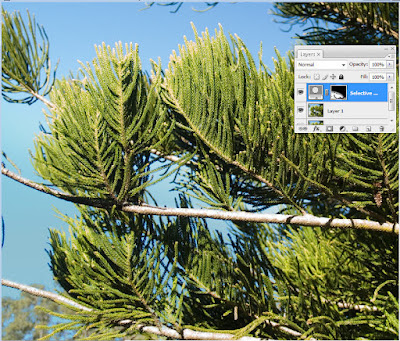
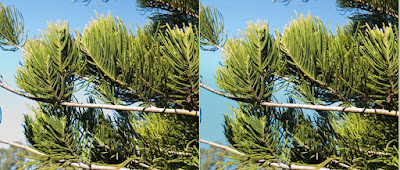
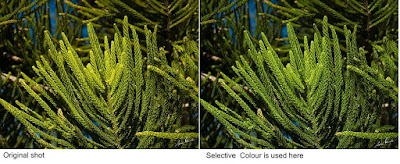


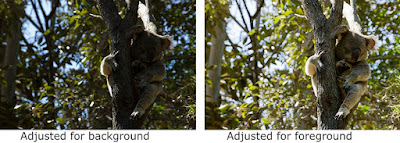
 As you can see the variation each have their own appeal. Do a "Google search" for